
Start the day with what needs you, on every job
Approvals to decide, claims to assess, payment schedules due, retention coming back, certificates running out. Each figure comes straight from the module that owns it, and one click opens it there.
What it does
What is waiting on you
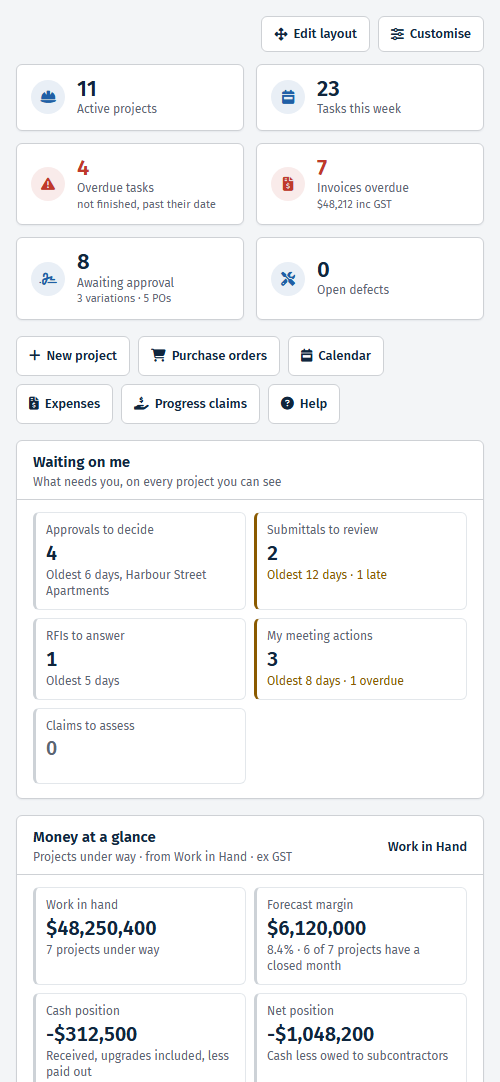
Approvals to decide, submittals to review, RFIs to answer, your meeting actions and subcontractor claims to assess, each with the age of the oldest.
How the jobs are going
Work in hand, forecast margin, cash and projects at risk, with retention, compliance, safety, quality, programme and more on cards of their own.
Your cards, your way
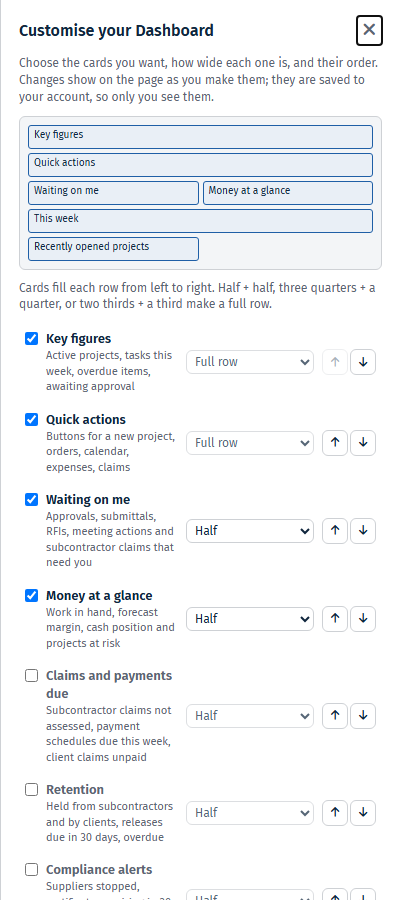
Switch cards on and off, drag them into your own order and pick each one's width. Your layout is saved to your account, so only you see it.
How it works
Choose a project, or none
With a project chosen on the left the cards show that project; with none, every project you can see.
Read from the module
Each figure is worked out by the module that owns it, when the page opens. Nothing is kept twice.
Only what you may see
A card for a module you do not have is not shown. Money you may not see is left out, and the card says so.
Open it there
Every figure is a link into its module. Where it counts one thing, it opens that thing.
Make it yours
Customise and Edit layout: which cards, in what order, how wide.
On the screen
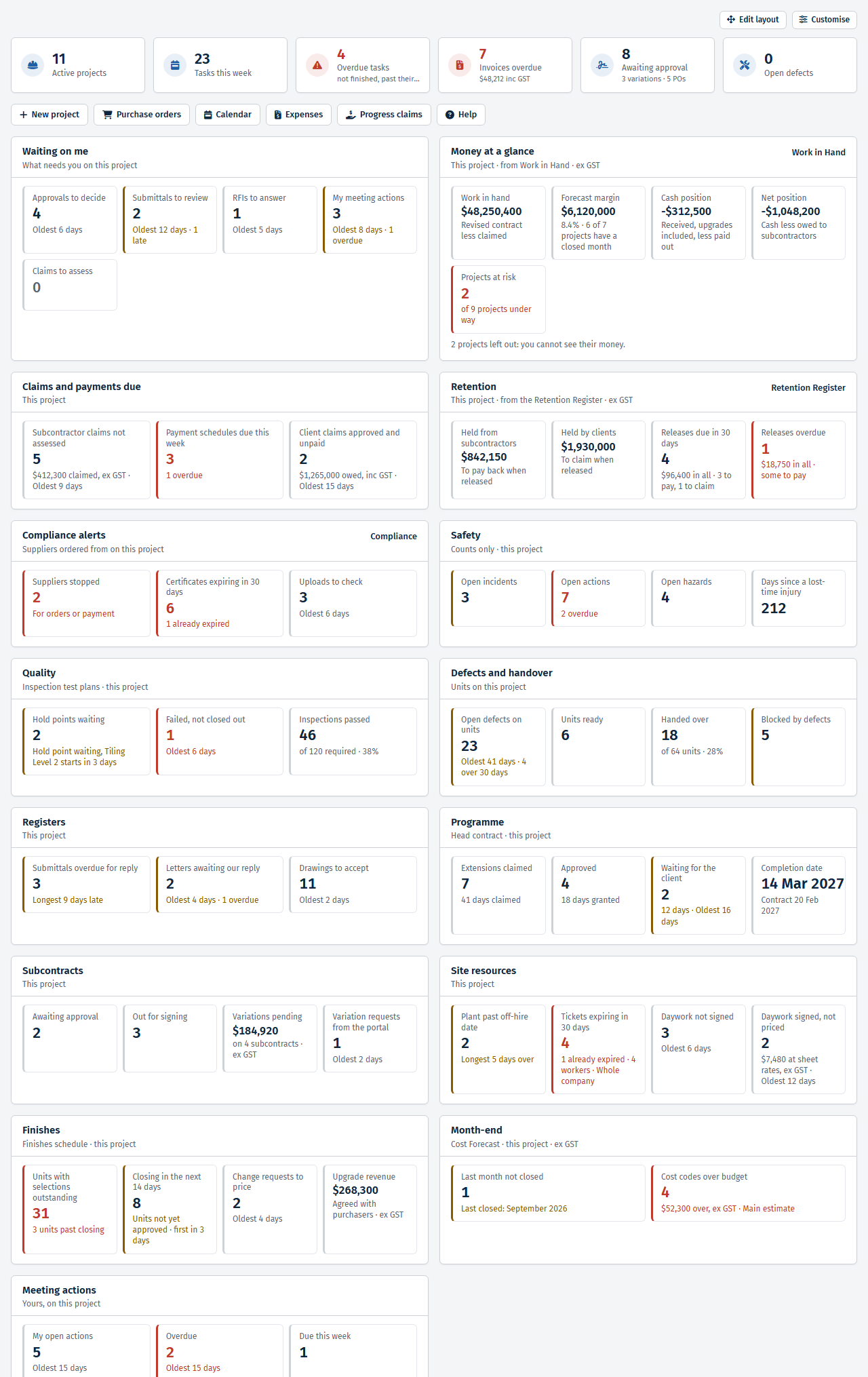
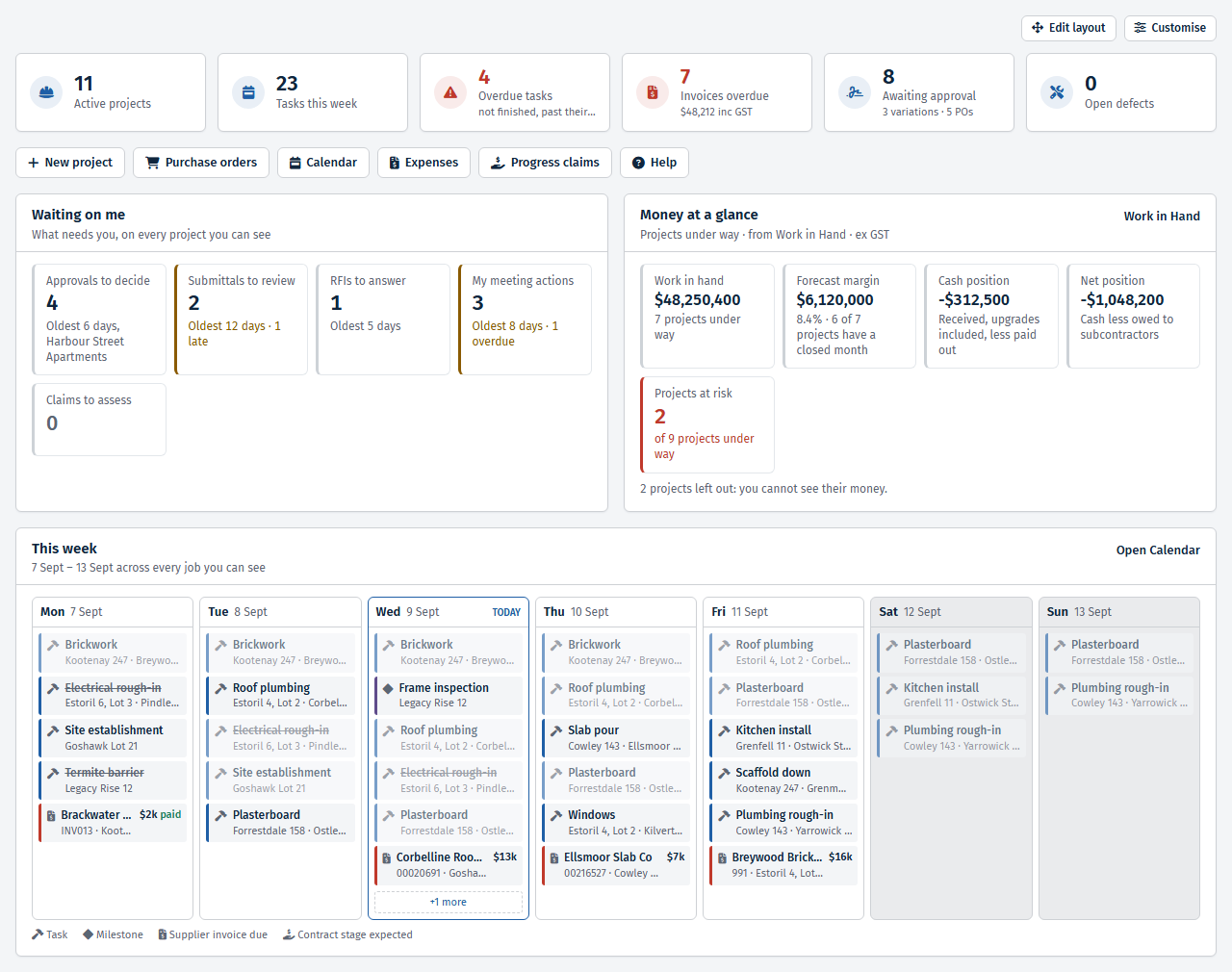
Fifteen Commercial cards sit beside the familiar ones: key figures, quick actions, this week, recent projects and more. Here is every Commercial card switched on, with one project chosen.
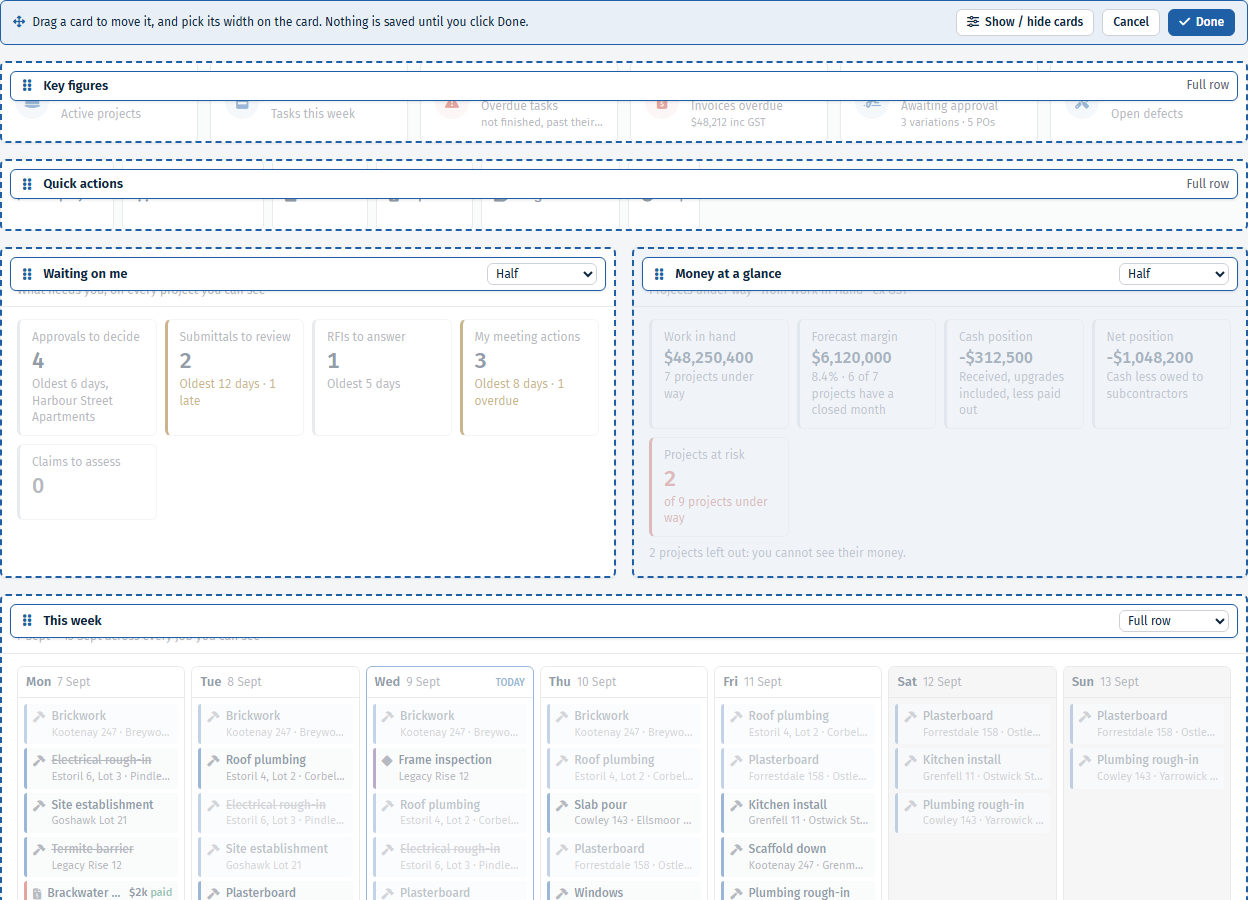
How wide each card is
Cards fill each row from left to right. Your layout is saved to your account, so only you see it.
The cards you can choose
| Card | What it counts |
|---|---|
| Waiting on me | Approvals to decide, submittals to review, RFIs to answer, your meeting actions, subcontractor claims to assess |
| Money at a glance | Work in hand, forecast margin, cash position, net position, projects at risk, from Work in Hand |
| Claims and payments due | Subcontractor claims not assessed, payment schedules due this week, client claims approved and unpaid |
| Retention | Held from subcontractors, held by clients, releases due in 30 days, releases overdue |
| Compliance alerts | Suppliers stopped, certificates expiring in 30 days, uploads from the portal to check |
| Safety | Open incidents, actions and hazards, and days since a lost-time injury. Counts only |
| Quality | Hold points waiting, failed inspections not closed out, inspections passed of those required |
| Defects and handover | Open defects on units, units ready, handed over, blocked by defects |
| Registers | Submittals overdue for reply, letters awaiting our reply, drawings to accept |
| Programme | Extensions of time claimed, approved and waiting for the client; the completion date |
| Subcontracts | Awaiting approval, out for signing, variations pending, variation requests from the portal |
| Site resources | Plant past its off-hire date, workers' tickets expiring, daywork not signed or not priced |
| Finishes | Units with selections outstanding, closing in the next 14 days, change requests to price, upgrade revenue |
| Month-end | Projects whose last month is not closed in Cost Forecast; cost codes over budget |
| Meeting actions | Your open actions, overdue, due this week |
When a safety incident has something outstanding with a clock on it, such as telling the regulator about a notifiable incident, a red strip shows above the cards for the people who are told about it. It cannot be switched off or moved down the page, and it goes once the duty is recorded as done.
A new company: start with a demo project
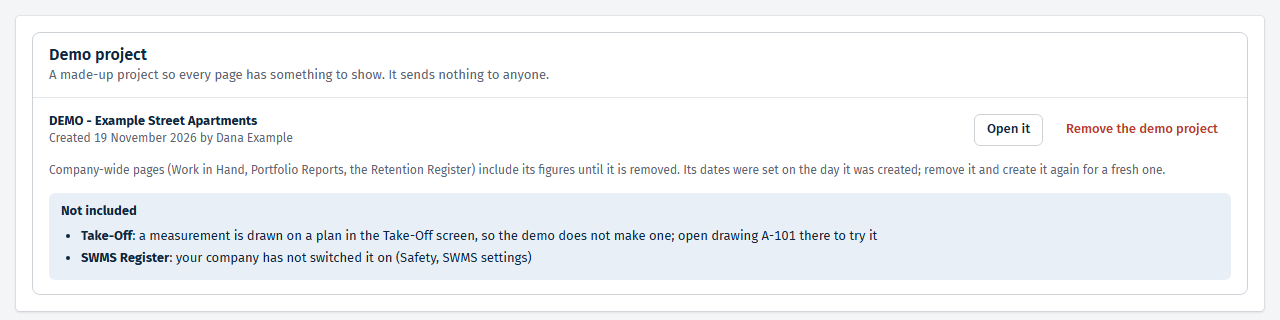
Until the company has a project, the Dashboard says how to set up the first one. A company administrator can also press Create a demo project: one made-up project, a 36-apartment building part-way through construction, with its estimate, programme, subcontracts, claims, drawings and site records, so every page has something to show. It sends nothing to anyone, and an administrator can remove all of it from Admin Panel, Company settings.

Connected to the rest of the job
The Dashboard keeps nothing of its own. Every figure is read, when the page opens, from the module that owns it, using that module's own rules for who may see what.
Questions builders ask
Will people see figures they should not?
No. A card for a module someone does not have is not shown and is not offered in Customise. Money on a project they may not see is left out of the figure, and the card says how many projects were left out. Safety shows counts only, never names or descriptions.
Is it one project or the whole company?
Both. With a project chosen on the left, the cards show that project. With none chosen, they cover every project the person can see, and a figure names the project that holds the oldest item.
Fifteen cards is a lot. Do we have to see them all?
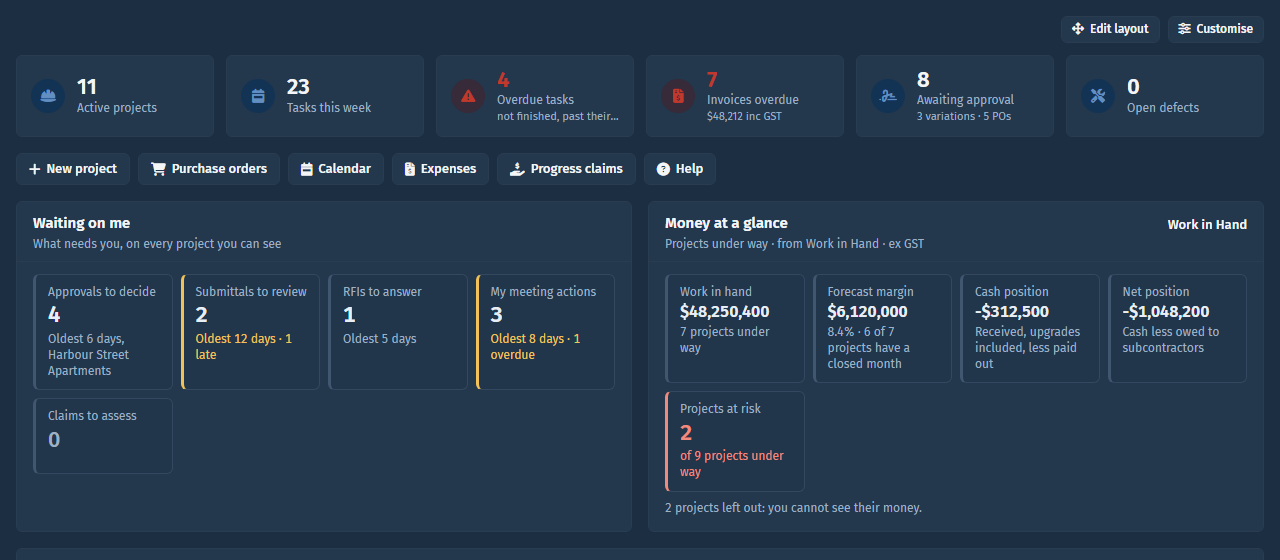
No. The page starts with six cards: key figures, quick actions, Waiting on me, Money at a glance, This week and recently opened projects. A line under them says how many more are available, and Customise switches any of them on.
If I change my layout, does it change everyone's?
No. Each person's choice of cards, order and widths is saved to their own account. Reset to default in Customise puts the starting set back.
Can we try it before we have a real project?
Yes. A company administrator can create a demo project from the Dashboard of a company with no projects, or at any time from Admin Panel, Company settings. It is made up, sends nothing, and can be removed in one go.
See it on a project like yours
An hour with the people who build it. Bring a current job; we will walk it from subcontract to claim. Then try it yourself for 30 days, on a project of your own.